Orders — the OrderHub
How orders flow through Organ360 — from checkout or store ingest to dispatch — and how to manage them in the OrderHub.
How orders arrive
Orders enter the CRM three ways: from your connected WooCommerce stores (automatic ingest), from the funnel checkout pages customers submit, and from manual entry by your team. Every order lands in the OrderHub regardless of source.
Each order carries the customer's name, phone, address, items, and — for fraud protection — the IP address it was placed from.
Working the OrderHub
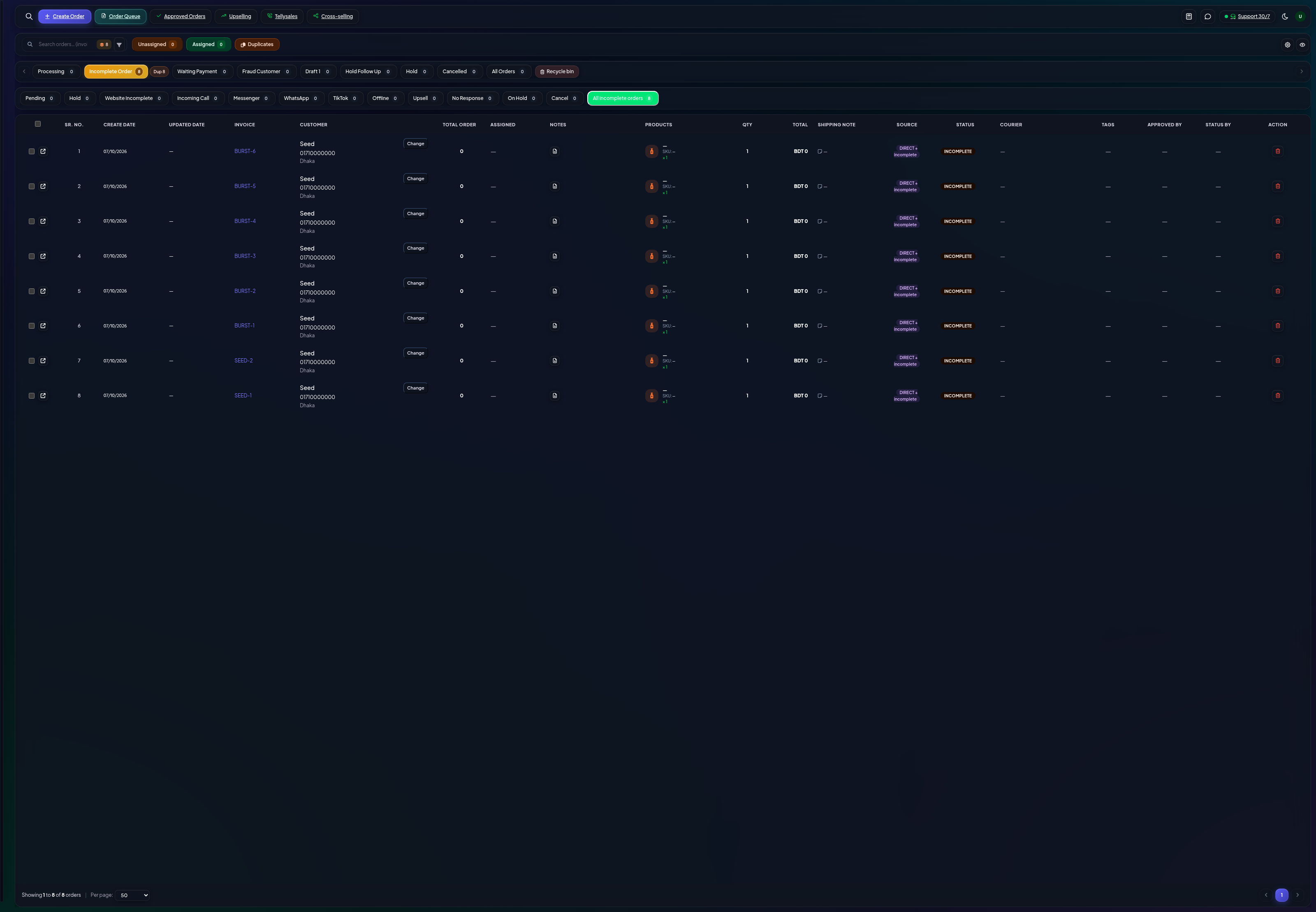
The OrderHub shows your pipeline as columns — Incomplete, Pending, Confirmed, Shipped and so on. An order moves forward only through the allowed transitions, so an order can never skip a required stage.
- Open an order to see its full detail: customer, items, payments, shipping and history.
- Use the transition buttons to move it — Confirm, Hold, Cancel — the system records who did it and when.
- Bulk-select rows for batch actions like assign, print or status changes.
Inside an order
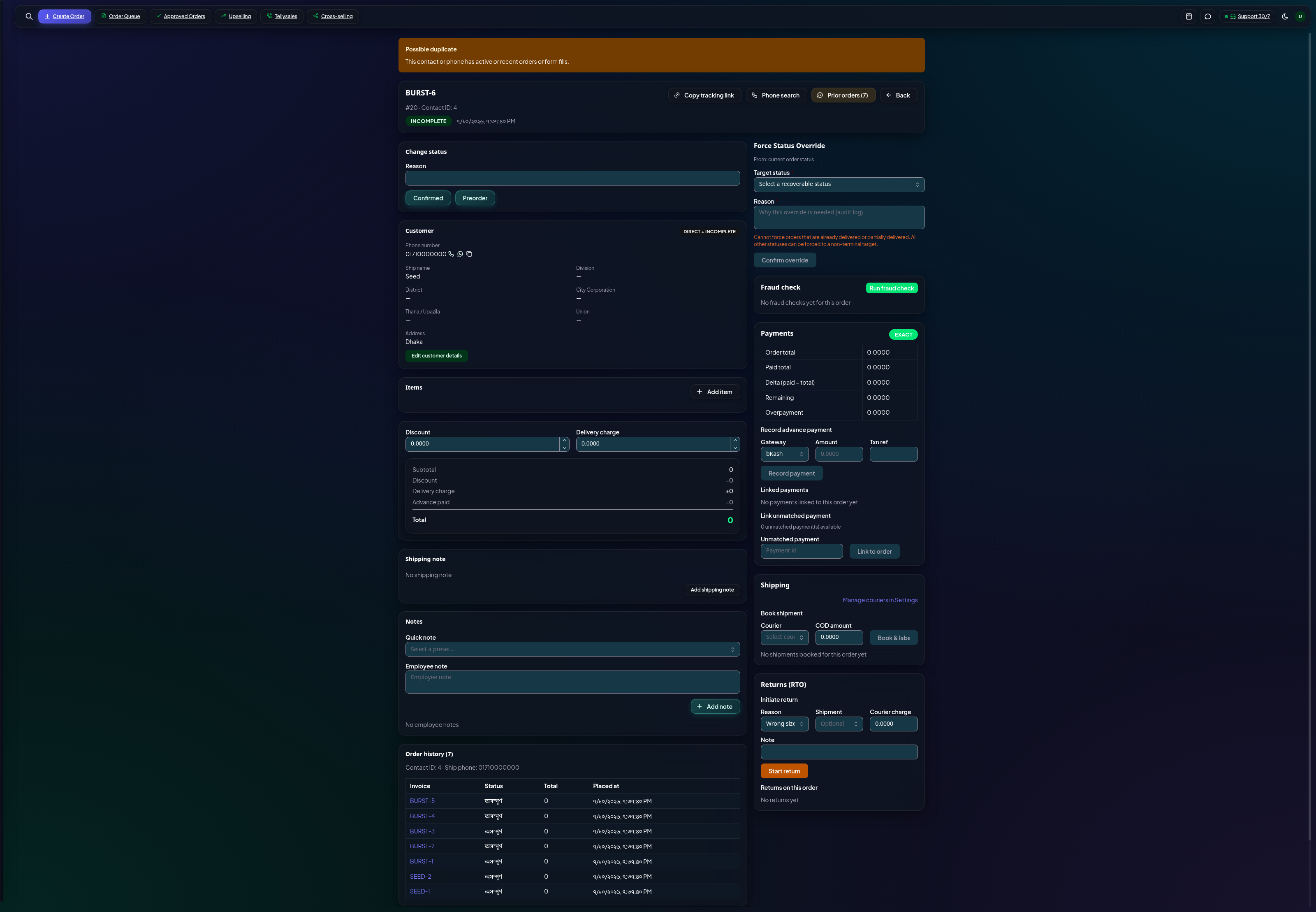
The detail page is where agents work: verify the phone number, confirm the address, edit items, take partial payments, and watch the timeline. Every status change and note lands in the order's history so the whole team sees what happened.
Manage & integrate
- Courier integration — connect your courier in Setup and dispatch orders straight from the order (AWB is generated automatically).
- Fraud checks — suspicious-IP orders surface in the Confirm queue and on Settings → Security.
- Notifications — order events can notify the customer (order created, confirmed, shipped) — configure in Business settings.
- Accounting — delivered orders can post revenue to ERP automatically when ERP sync is enabled.