What the CRM dashboard shows, how to read the cards, and how to act on the things that need attention first.
What the dashboard does
The dashboard is the first screen you see after logging in. It pulls together the numbers that matter right now — today's orders, items waiting for action, and quick links into the modules you use most.
Use it as your morning checklist: glance at the stat cards, then open anything in the Needs attention area before it becomes a problem.
Reading the screen
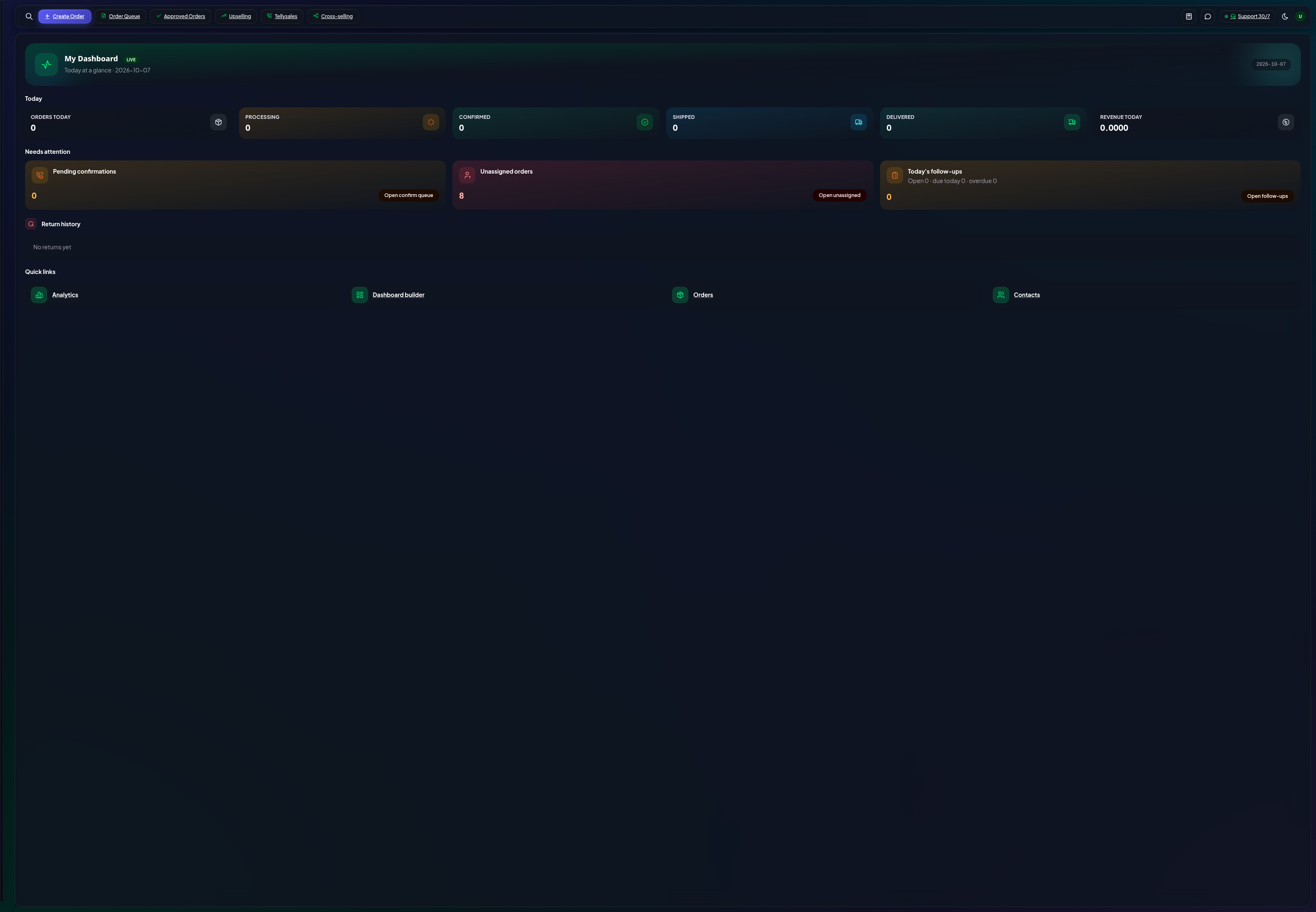
CRM dashboard with stat cards and attention list
Stat cards — headline counts for orders, revenue and queue sizes for the current period.
Needs attention — orders or tasks that are overdue or stuck; click one to jump straight to it.
Quick links — shortcuts into Orders, Inbox, Confirm queue and the other busy modules.
Tips
Everything on the dashboard is read-only — no changes happen here. Click a card or row to land on the module where you act.
If a number looks wrong, check the period selector before investigating — most cards follow the selected date range.
The dashboard respects your role: staff only see the modules their menu permissions allow.